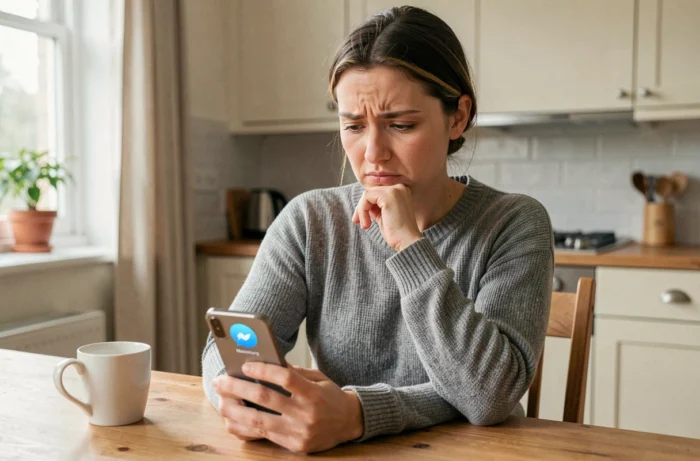
Messenger displays “waiting for network connection” while your browser loads any page without difficulty. This gap between a functioning network and a blocked application regularly affects users, sometimes for several hours. The network connection issue on Messenger can stem from the app itself, the device’s network configuration, or Meta’s servers.
Network filters and DNS: the invisible cause on Messenger
The majority of troubleshooting guides suggest restarting the phone or updating the app. These actions work in simple cases. However, they do not resolve anything when the blockage comes from an intermediate network layer.
An active VPN, a DNS filtered by the operator, or a local network firewall can specifically block Messenger connections without affecting the rest of the browsing. The app tries to reach specific Meta servers, and a network filter can target these addresses without cutting off general access to the Internet. This scenario explains why Wi-Fi seems to work normally while Messenger remains frozen.
To isolate this cause, you can test the connection with a mobile network (cellular data) instead of Wi-Fi. If Messenger works on 4G but not on Wi-Fi, the problem lies within the local network. Temporarily disabling a VPN or changing the DNS server (switching to a public DNS, for example) often helps to unblock the situation. A detailed guide to fixing a network connection issue on Messenger outlines this procedure step by step.
Corporate networks and public Wi-Fi (hotels, airports) often apply filtering rules that disrupt messaging applications. On a home network, parental control software or a router with built-in filtering can produce the same effect.
Meta outage or local bug: diagnosis with Messenger web
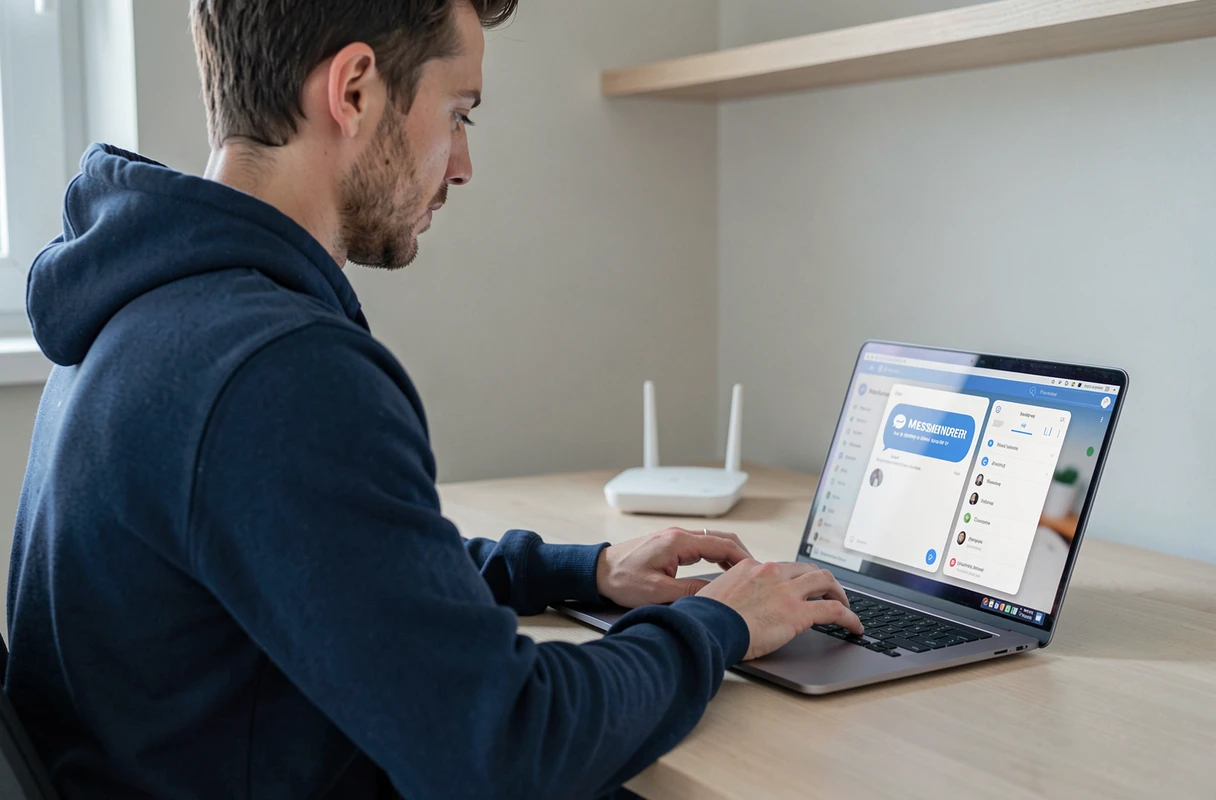
Before clearing the cache or reinstalling the app, a often-overlooked step can save time: comparing the behavior of the mobile app with Messenger in a browser.
Open messenger.com from a browser (on computer or mobile). If the web version works normally while the app remains blocked, the problem is localized in the app. If the web version is also inaccessible, two hypotheses remain open:
- A Meta outage affects the servers. Simultaneous incidents on Facebook, Instagram, and Messenger have been documented, including in July 2026 with reported disruptions in several countries.
- A network blockage affects all Meta services on your current connection, which refers back to the DNS filtering or firewall issue described above.
- Your account is subject to a temporary restriction, for example after sending a large number of messages in a short time.
Sites like Downdetector or statut-services.fr aggregate real-time user reports. A spike in reports at the time you encounter the issue indicates a widespread outage, and in this case, no action on your device will change anything.
Corrupted cache and persistent blockage on Android and iOS
When the network diagnosis is ruled out and the Meta outage does not seem to be the cause, the app itself becomes the main suspect. The Messenger cache stores temporary data that can become corrupted after an interrupted update or a lack of storage space.
Clear the cache without losing conversations
On Android, go to the device settings, then Apps, select Messenger, and tap “Clear cache.” This operation removes temporary files without touching the conversations, which are stored on Meta’s servers.
On iOS, Apple does not provide a dedicated button to clear an app’s cache. The only reliable method is to uninstall and then reinstall Messenger. Your messages will be retrieved upon reconnection.
When the reinstallation itself fails
A documented case on a Pixel device shows that Messenger can remain stuck on “waiting for network connection” even after reinstallation. This behavior goes beyond the usual troubleshooting advice. It may be related to residual data retained by the operating system despite uninstallation.
On Android, deleting the data (and not just the cache) via system settings, followed by a complete restart of the device before reinstalling, is the most radical action before contacting Meta support.
Messenger connection and system updates: incompatibilities
On Android, a system component named Android System WebView manages the display of web content in apps. An outdated version of WebView can cause crashes or network blockages in Messenger. This component updates through the Google Play Store, independently of operating system updates.
Checking that WebView and Google Chrome are up to date on your device is part of the reflexes to adopt when Messenger malfunctions for no apparent reason. On iOS, system updates directly integrate these components, which reduces this type of conflict.
An overly old version of Messenger itself can also pose a problem. Meta is gradually deprecating older versions of the app, and some connection protocols cease to be supported on the server side. If your device no longer supports the latest versions of Messenger, the web version remains a functional alternative.
Network blockage on Messenger rarely results from a single cause. Cross-referencing browser tests, network checks, and update statuses allows you to identify the source in a few minutes, without unnecessary actions. Patience is required when the origin of the problem lies with Meta: server incidents usually resolve in less than a few hours.